
How to Optimize Syncing for Auto Sync
Auto Sync in Inventory Sync GoGo helps keep inventory synchronized across your duplicate products. However, syncing unnecessary skus can consume your monthly sync allowance faster than expected.
You can optimize your Auto Sync settings by identifying which SKUs consume the most syncs and limiting syncing to only the skus you need.
Step 1: Identify SKUs Consuming the Most Syncs
- Open Inventory Sync GoGo in your Shopify admin.
- Navigate to the Audit Log tab.
- Filter the logs by the number of inventory syncs.
- Review the logs to identify which SKUs are consuming the most syncs.
This helps you understand which skus contribute most to your sync usage and where you can optimize your settings.

Step 2: Optimize Your Auto Sync Rules
Once you have identified the SKUs consuming the most syncs:
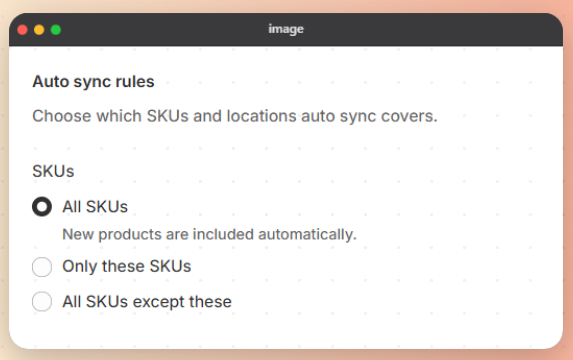
- Navigate to Syncing → Auto Sync Rules in the Inventory Sync GoGo app.
- Choose the option to Only these SKUs if you want to limit inventory syncing to selected Skus.
-
Alternatively, All SKUs except these SKUs that you do not want to sync automatically.
Need Help?
If you need assistance optimizing your Auto Sync settings or have questions about your sync usage, please contact our support team.