.png)
How to Diagnose an Inventory Mismatch
If you notice an inventory mismatch, don’t worry. Inventory Sync – GoGo keeps a detailed audit trail of every inventory sync made by the app.
You can use the Sync ID to trace exactly what caused a particular inventory adjustment.
Step 1: Find the Sync ID
Open the product’s Inventory adjustment history in Shopify.
Under Inventory correction, click the dropdown arrow to expand the adjustment details. You’ll find the Sync ID there.
Copy the Sync ID.

Step 2: Search the Sync ID in Audit Logs
Open Audit Logs in the app and search for the copied Sync ID.
The audit log will show the details of the original inventory event that triggered the sync, including:
- Product
- Location
- Time
- New inventory value
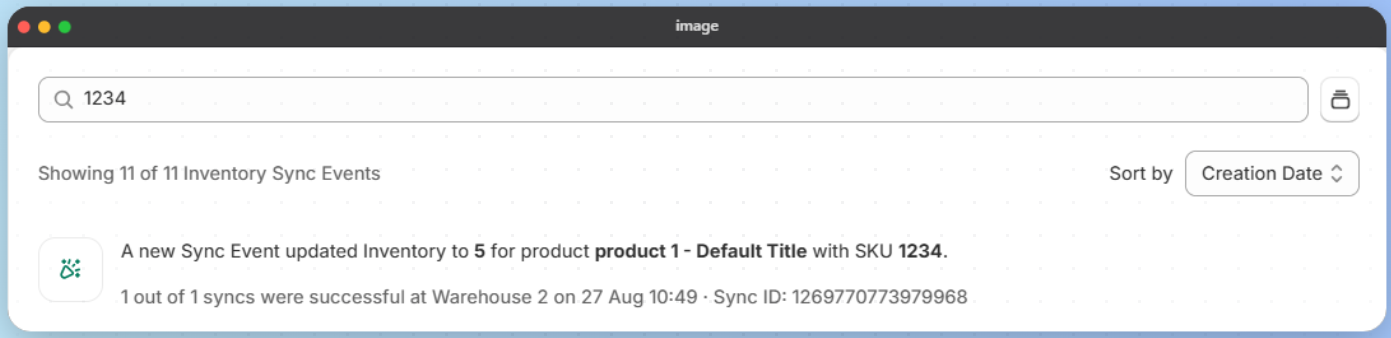
This allows you to quickly trace why the inventory adjustment happened, including the original product where the inventory delta occurred.
If you're still experiencing the issue, please contact us. We'd be happy to help you audit and identify the cause of the inventory mismatch.